


Why Custom Portal Photo and Signature Uploads Fail
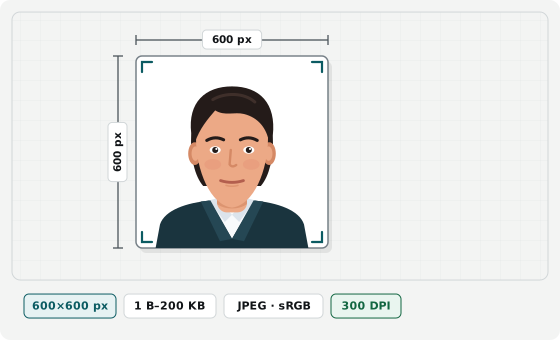
Start from the 600×600 px (300 DPI, ≤200 KB) default or set custom sizes from 50×50 px to 4000×4000 px, millimeter boxes, DPI headers, and your KB cap. Switch between portrait crop and signature whitening, pan and zoom in two directions, and export a verified sRGB JPEG or PNG. Your images stay in local browser memory with zero uploads.
University portals, licensing boards, HR systems, and banking forms check pixel dimensions, DPI tags, color profiles, and kilobyte bounds.
Matching Exact Pixel Dimensions and Tight Kilobyte Caps
Basic editors change pixels without controlling kilobytes or shrink bytes by scaling pixels. This workbench locks your grid (50×50 px to 4000×4000 px, or millimeter sizes at your DPI) and tunes JPEG quality so the file lands under your KB cap without changing pixels. If a large canvas cannot fit under a tiny KB cap, the checklist flags it.
Stamping Print DPI Headers and Whitening Signature Paper
Phones and basic resizers omit density headers, causing errors on portals requiring 300 DPI or 200 DPI metadata. Every export writes the JFIF APP0 header for JPEG or pHYs chunk for PNG in sRGB. In signature mode, whitening turns shadowed paper into a white backdrop so ink stays sharp inside 10–20 KB caps.
Dedicated Portal Presets vs Custom Targets
- Official visa, passport, and exam portals: Use our dedicated tools for US Visa (600×600 px), UK Passport, Passport Seva, SSC, IBPS, or PAN rules.
- JPEG vs PNG output format: Use JPEG for strict KB ceilings; choose PNG only when lossless output is required.
- Combining document scans into a PDF: For multi-page certificates in one PDF under a byte cap, use Merge & Compress PDF to Target Size.