
Why Custom Portal PDF Uploads Fail and How Target Fitting Works
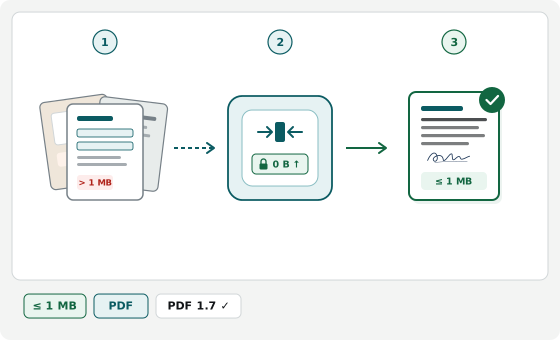
Start with the ≤1 MB default or choose a preset and custom ceiling from 50 KB upwards, optional page cap, scan DPI, and form flattening. Drop multiple PDFs, JPEGs, PNGs, WebP images, or HEIC photos to preview thumbnails, reorder pages, and verify every constraint before download. Your documents stay in local browser memory with zero uploads.
Many portals accept only one unencrypted PDF per slot and reject uploads that exceed a byte cap, exceed a page limit, or keep editable fields.
One-Step Merge and Exact Target-Size Compression
Basic PDF tools split merging and compression and use vague sliders that leave files over the limit or blur text. Here you set the byte ceiling — such as 1 MB (1,048,576 bytes) or a custom KB cap — and the tool strips overhead, downsamples images, and keeps selectable text before rasterizing.
Handling Page-Count Caps, Fillable Forms, and Locked PDFs
When a portal caps bytes and pages, setting a page limit verifies your packet does not spill onto an extra page — without deleting pages. Form flattening bakes AcroForm fields and annotations into static content so entries never show blank, while locked or XFA files are flagged upfront.
Tips for Tight KB Ceilings and Dedicated Portal Tools
- Enable grayscale for multi-page paper scans: Grayscale removes paper tint so scans fit inside 200–500 KB ceilings with legible stamps.
- Sub-100 KB single-page certificates: For 100 KB e-District, GST, or scholarship slots, use Compress PDF to 100 KB.
- Pre-configured immigration and university portals: Use our tools for NVC CEAC (2 MB), IRCC (4 MB), ImmiAccount (5 MB), IND (8 MB), uni-assist (10 MB), or myUSCIS (12 MB).